If you have the 6sense tracking script (or others like Demandbase) on your site but don’t integrate that data with GA4, you are missing out on discovering who these anonymous prospects are in the buyer’s journey. While 6sense collects that information, if you can’t match it with what they’re looking at on your site, you are losing chances to further engage prospects with the right content at the right time.
There’s a way to collect and view 6sense data in GA4 that shows you which parts of your website are being visited, and this article outlines the high-level process necessary to make that happen.
This post assumes that your web integration team has successfully installed the 6sense code and verified that it works in your 6sense dashboard, or have added the script in Google Tag Manager.
What is 6sense?
6sense is B2B analytics software that “…drives predictable revenue growth by uncovering anonymous buyers, understanding their behavior, and directing you to engage the ones most likely to buy.” It tells you who has visited your website with details such as:
- Employee range and count
- Revenue range
- Annual revenue
- Buying stage
- Profile fit
- Confidence
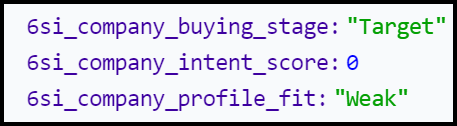
[Sample 6sense Data Collected From A Web Page]
With this information, marketing and sales can streamline their workflow and effort to move the prospect further into the buyer’s journey.
The process is:
- Creating the Google Tag Manager event, triggers and variables
- Creating custom dimensions in GA4
- Verifying the 6sense data is being passed to GA4 in Chrome Developer Tools with Analytics Debugger
Create Tags, Triggers and Variables In Google Tag Manager
Once the 6sense code is installed and verified as working, the next step is to prepare the Google Tag Manager tags, triggers and variables that will be used for creating and recording events and custom dimensions in GA4.

[Tag In GTM]
Create the tag first, then set up User Properties based on Data Layer Value (dlv) Variables:
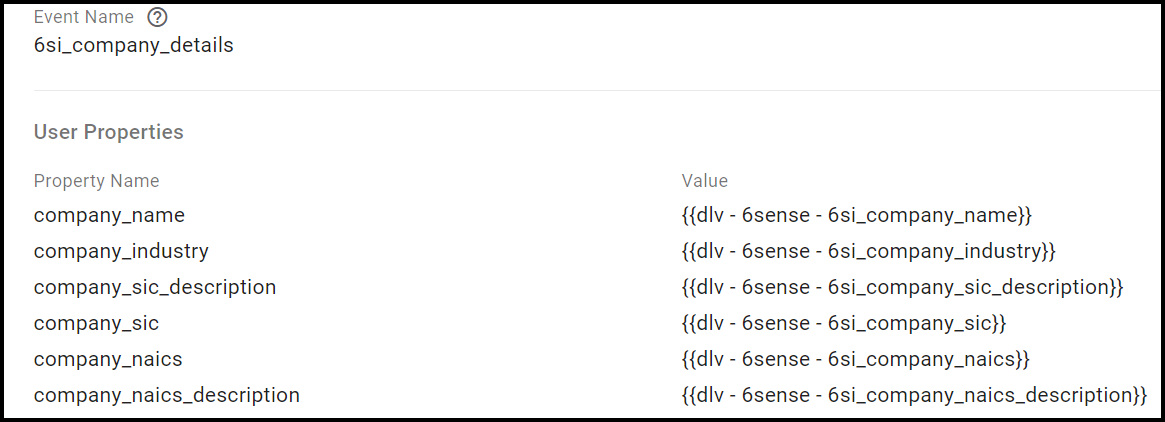
[User Property Examples In GTM]
Next, create the Custom Event trigger that will pick up when the 6sense script is loaded, and 6Sense is passing the company information as dataLayer values:
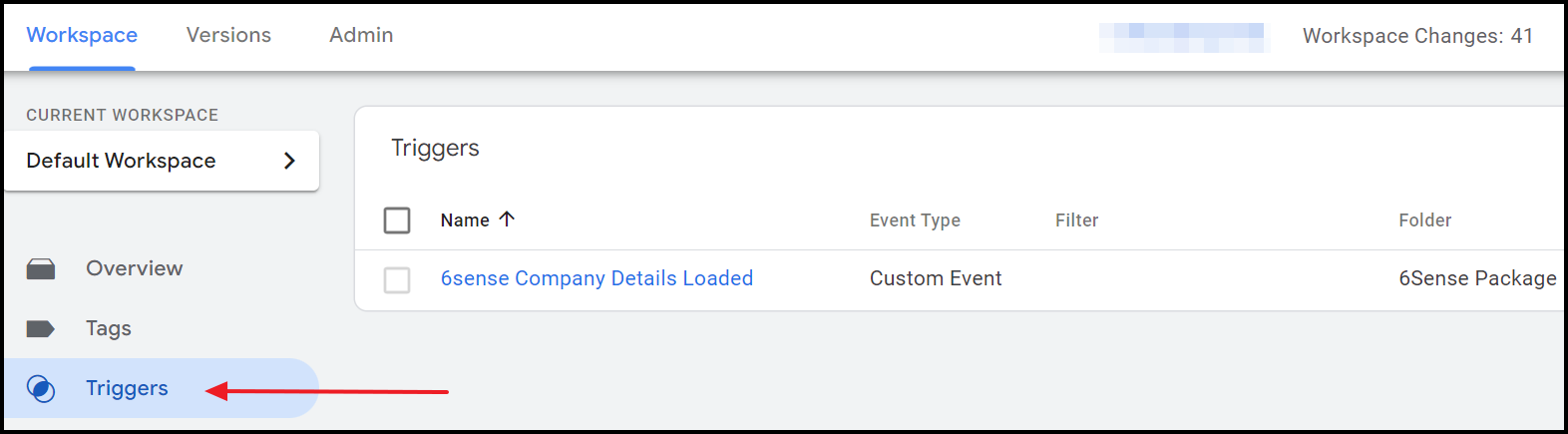
[Trigger In GTM]
Below are a handful of the variables created in GTM to capture as much data as 6sense collects:
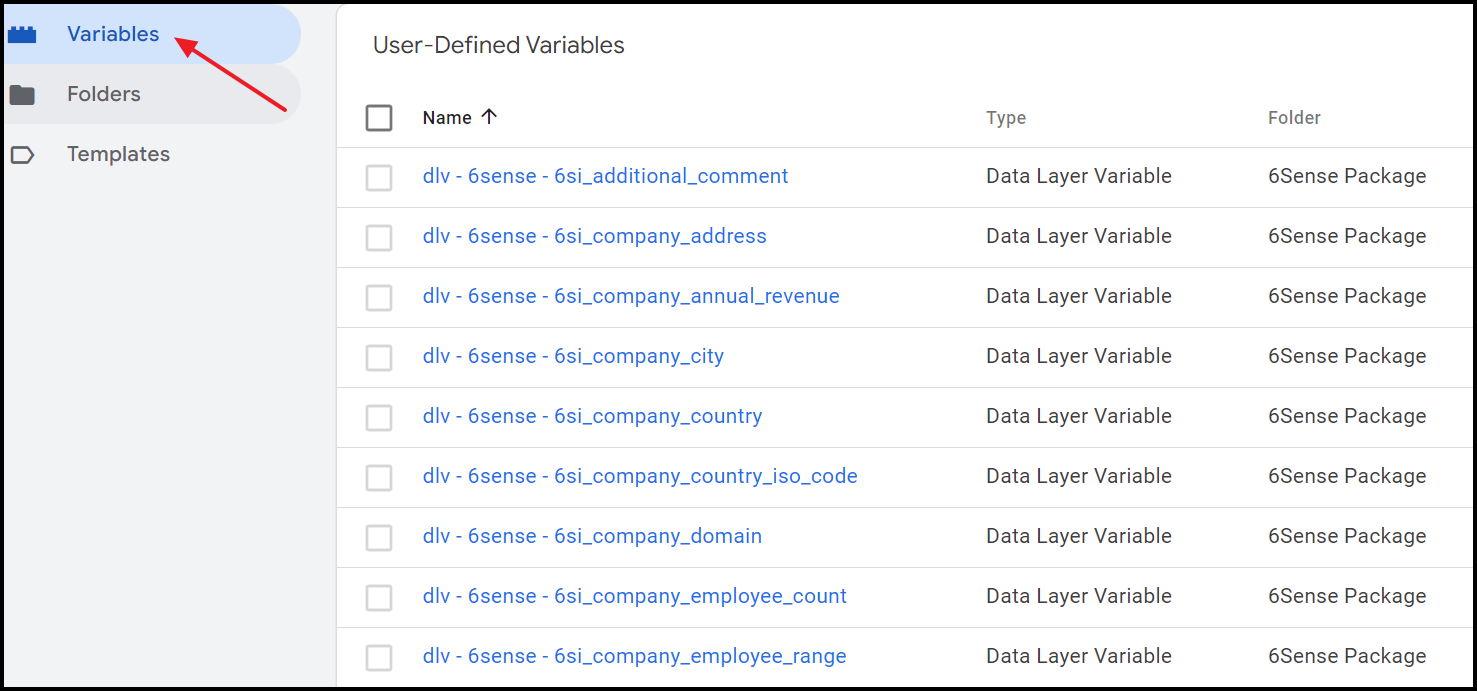
[Examples Of The Variables In GTM]
Viewing 6sense data in GA4:
When all items are set up in both GTM and GA4, it’s time to see how the 6sense integration works. The 6Sense Event and each user property customer dimension will show up in the Engagement overview, real time reports, and a few other places in GA4:
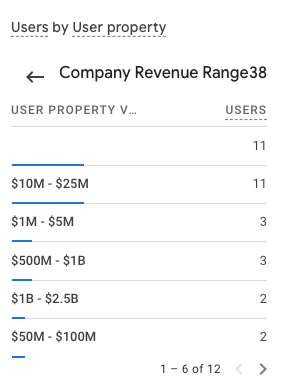
[Real Time Report In GA4]
The screenshots below have captured individual page titles and URLs from the 6sense code installed on the website. When evaluating which pages are first landed on, you can see if the content you want to start the buyer’s journey are those that are visited.
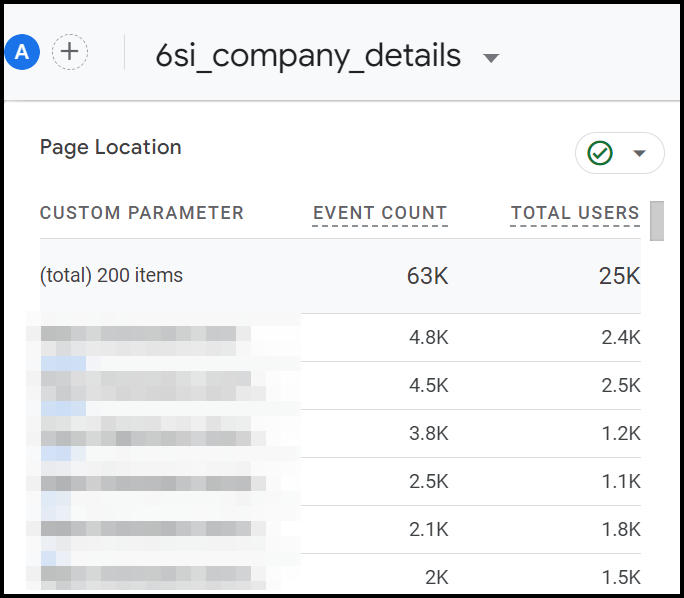
[6sense Engagement Details In GA4 – Page Location]
GA4 also captures the 6sense event metrics and performance along with other events you have created to measure website/page effectiveness.
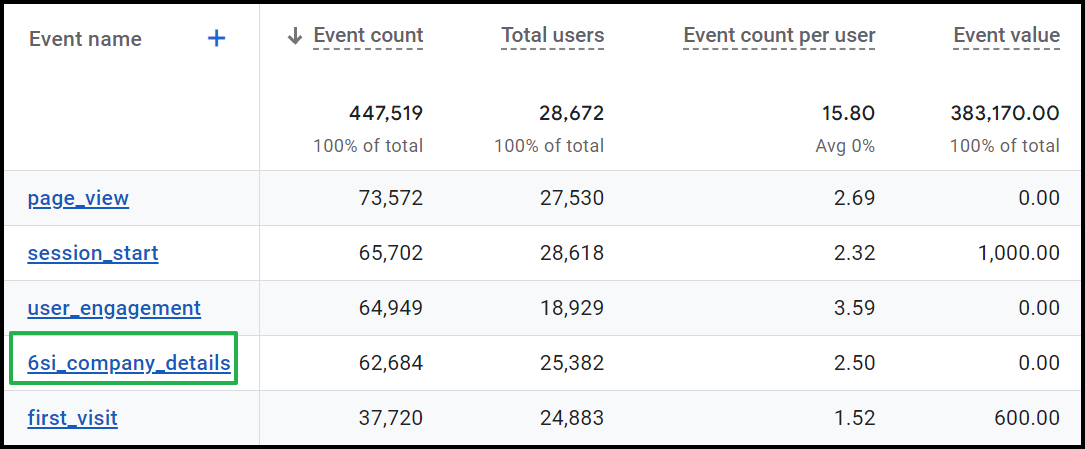
[Event Name In GA4]
Verifying 6sense Data Collection Is Being Triggered In GTM and Passed To GA4
While waiting for the 6sense event to populate in GA4, you can view the data collection on any page for your website by using the method below.
This screenshot shows what 6sense collects on each web page. We use an Analytics debugger Chrome extension to view the data:
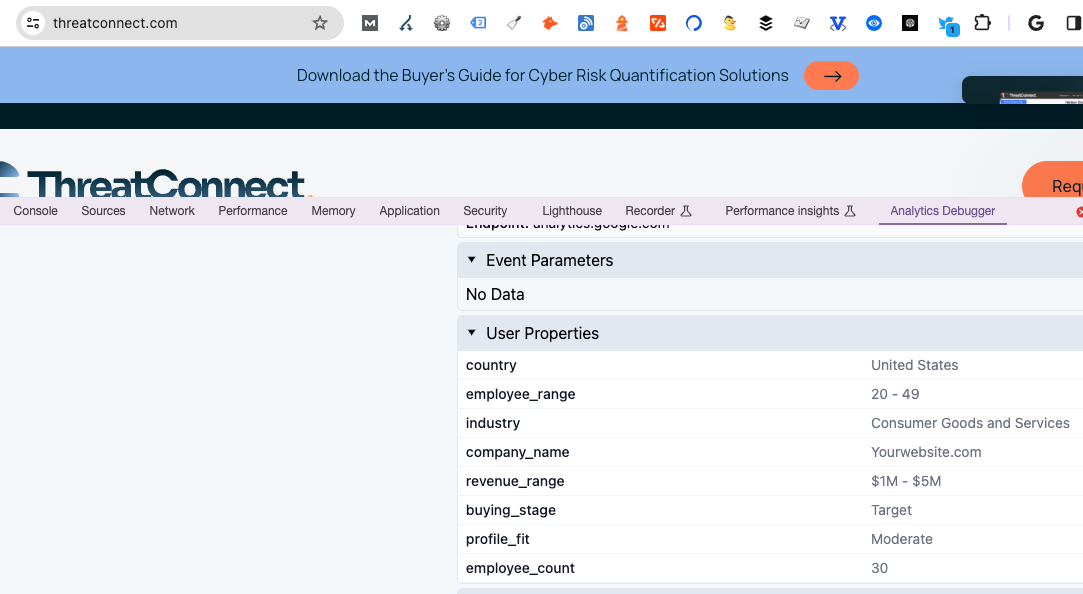
[6sense Data In GTM In Analytics Debugger Tool]
Setting Up Custom Definitions & Audiences In GA4
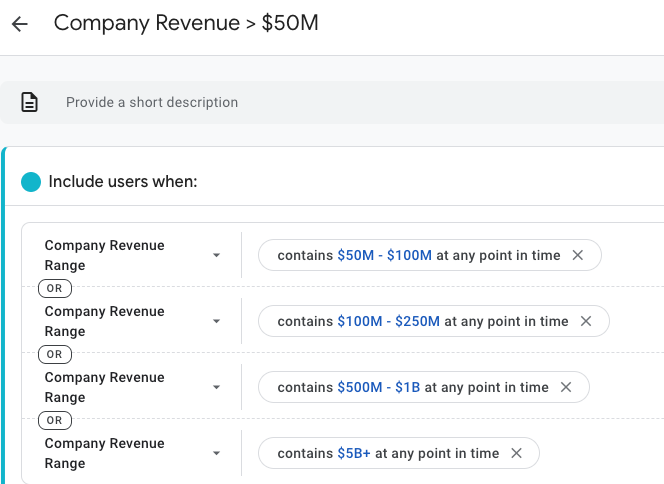
GA4 is set up to capture data through events and dimensions. Using the same values as created in GTM, we need to set up custom dimensions to “bucket” these users together. And then from there, we create audiences in the GA4 Admin..
[Create Audiences Based on Custom Dimensions]
Integrating 6Sense Data with Google Ads
Once the data is populating in GA4, the really powerful use of the 6Sense data is to capture these visits as GA4 Audiences, based on the User Properties listed above. From there, you can pass the audiences into Google Ads, and use them for remarketing targeting rules. For example, a B2B software company would be able to bid up on an audience of visitors from companies of $50 Million in revenue or higher, like what’s shown above. It’s incredibly powerful data to save advertising budgets.
If your 6sense data collection isn’t integrated into GTM, GA4, and Google Ads, you’re missing critical conversion opportunities to fine tune the buyer’s journey for each prospect. If you need help with incorporating 6sense into GTM and GA4, contact us to learn more.

Leave a Reply